August 21, 2026
How to Transfer an eSIM Between Two iPhones in 2026
Learn the complete step-by-step process to transfer an eSIM from one iPhone to another in 2026. Covers carrier support, eUICC, troubleshooting, and device compatibility.
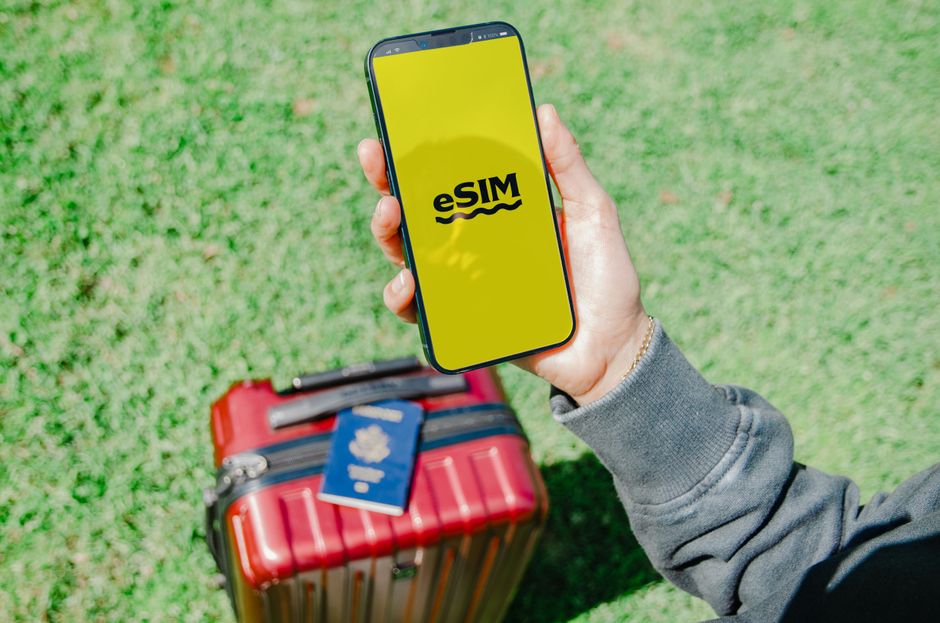
Photo: Jacob — Pexels
Understanding eSIM Technology and iPhone Transfers
An eSIM (embedded SIM) is a digital SIM that resides on a tiny chip called the eUICC (embedded Universal Integrated Circuit Card) soldered directly into your iPhone's logic board. Unlike a physical SIM card, you don't insert or remove it — you activate it via a carrier profile downloaded over the internet. This makes switching phones both easier and more complex, depending on your carrier and the specific iPhone models involved.
To transfer an eSIM between two iPhones, three things must be true simultaneously: both iPhones must have eUICC hardware (all iPhones since the iPhone XS and XR, except most models sold in mainland China), your carrier must support eSIM transfers (most major carriers do, but some prepaid or regional carriers may not), and both devices must be running a recent version of iOS (at least iOS 17, but ideally iOS 18 or iOS 26 in 2026). Without any one of these, the transfer will fail.
Before You Begin: Essential Prerequisites
Before attempting any transfer, follow this checklist to avoid frustration:
- Back up your current iPhone (iCloud or Finder) to preserve your eSIM profile and other data.
- Ensure both iPhones are fully charged or plugged into power. The transfer process can take several minutes and a dead battery mid-transfer can cause issues.
- Connect to a stable Wi-Fi or cellular network on both devices. The eSIM profile is downloaded over the internet.
- Verify carrier support for eSIM transfers. Check your carrier's website or app, or contact their support. Some carriers require a QR code or manual activation instead of the automatic transfer.
- Keep your old iPhone nearby because you may need to approve the transfer on it.
Method 1: Quick Transfer Using the Setup Assistant (iOS 16 and later)
Apple's built-in Quick Transfer is the simplest method when you have both iPhones physically together and they are both running iOS 16 or later (which includes iOS 26 in 2026). This method works for most postpaid and many prepaid carriers.
Step-by-Step Quick Transfer
- Turn on your new iPhone and place it near your old iPhone. The Quick Start screen appears.
- Follow the on-screen instructions to set up Face ID or Touch ID on the new device.
- When you reach the “Transfer Your Data” screen, choose “Transfer from iPhone” and confirm on your old iPhone.
- When asked about your cellular plan, select the eSIM you want to transfer. If you have multiple eSIMs, select all that you want to move.
- Your old iPhone will show a confirmation prompt. Tap “Transfer” or “Confirm”.
- Wait for the new iPhone to download the eSIM profile. This can take 2–5 minutes. Do not navigate away from the setup screen.
- Once the profile is installed, your new iPhone will activate on the carrier network. You may receive a text or email confirmation from your carrier.
If the Quick Transfer does not appear or fails, move to Method 2.
Method 2: Manual Transfer via Settings (iOS 17.4 and later)
For carriers that do not support Quick Transfer, or if you are transferring between iPhones that are not both on the same Wi-Fi network, you can use the manual transfer option in Settings.
Step-by-Step Manual Transfer
- On your new iPhone, go to Settings > Cellular (or Mobile Data in some regions).
- Tap “Add eSIM” or “Add Cellular Plan”.
- Choose “Transfer from Nearby iPhone”. Your new iPhone will search for nearby devices.
- On your old iPhone, a prompt will appear asking if you want to transfer your eSIM. Tap “Transfer”.
- Your new iPhone will display the eSIM details. Confirm the phone number and tap “Transfer”.
- Wait for the profile to download and install. Once done, your new iPhone will activate.
This method is more reliable if you have a carrier that supports eSIM but does not support Apple's Quick Transfer. However, if you don't see the “Transfer from Nearby iPhone” option, your carrier may require a QR code or manual entry.
Method 3: Using a QR Code or Carrier App
Some carriers, especially prepaid or MVNOs (Mobile Virtual Network Operators), do not support automatic transfers. In that case, you need to obtain a new QR code from your carrier. This is often available in the carrier's app, on their website, or by contacting customer support.
Steps for QR Code Transfer
- Contact your carrier and request a new eSIM QR code for your new iPhone. Do not use the same QR code from your original activation, as it is often single-use.
- On your new iPhone, go to Settings > Cellular > Add eSIM.
- Choose “Use QR Code” and scan the code provided by your carrier.
- Follow the on-screen instructions to install the eSIM profile. You may need to enter a confirmation code provided by the carrier.
- Once installed, your new iPhone will activate.
Remember that when you activate the eSIM on your new iPhone, the old iPhone's eSIM will typically be automatically deactivated by the carrier. If not, you should manually remove the eSIM from the old iPhone to avoid having two active profiles (which may cause billing issues).
What to Do After the Transfer
After the eSIM is successfully transferred, you should test your new iPhone's cellular connection. Make a phone call, send a text, and use mobile data. If any service is missing, try the following:
- Toggle Airplane Mode on and off.
- Restart your new iPhone.
- Go to Settings > Cellular and ensure the eSIM line is turned on and set as your default for voice and data.
- If you have multiple eSIMs, set the correct line for default voice, SMS, and data.
If the eSIM does not activate after 30 minutes, contact your carrier's technical support. Do not attempt to reinstall the eSIM repeatedly, as that can sometimes lock the profile.
Troubleshooting Common eSIM Transfer Issues
eSIM Not Appearing on New iPhone
If your new iPhone does not show the eSIM after transfer, first confirm that your new iPhone is unlocked and not carrier-locked to a different network. A carrier-locked iPhone will only accept eSIMs from the designated carrier. Also, check that your new iPhone model supports eSIM — all iPhones from the XS, XR, and later do, but older models (iPhone X and earlier) do not.
Carrier Rejects the Transfer
Some carriers require you to contact them before transferring an eSIM, especially if you are moving a number that is associated with a contract or a promotional plan. If you see an error like “Carrier does not support transfer,” call your carrier and ask them to provision the eSIM on your new iPhone. They may ask for your IMEI (International Mobile Equipment Identity) number, which you can find in Settings > General > About.
Old iPhone Still Shows Active eSIM
If your old iPhone still shows the eSIM as active after you've activated it on the new iPhone, it usually means the carrier has not yet deactivated it. To avoid double-charging, you should manually remove the eSIM from the old iPhone: Settings > Cellular > tap the eSIM line > Remove Cellular Plan. This is safe because the profile is already on your new iPhone.
Transfer Fails with “Unable to Complete Transfer”
This error often occurs when the carrier's system is temporarily down, or when there is a mismatch between the eSIM profile and the new iPhone's IMEI. Wait 15 minutes and try again. If it persists, contact your carrier and ask them to reset the eSIM provisioning on their end.
Comparing eSIM Transfer Methods
| Method | Best For | Time Required | Carrier Support Needed |
|---|---|---|---|
| Quick Transfer (Setup Assistant) | Most users with both iPhones together | 2–5 minutes | Yes (most major carriers) |
| Manual Transfer (Settings) | When Quick Transfer fails or is not available | 5–10 minutes | Yes |
| QR Code / Carrier App | Prepaid, MVNO, or unsupported carriers | 10–20 minutes | Yes (QR code provided) |
eSIM Transfer Between iPhones and Android Devices
While this article focuses on iPhone-to-iPhone transfers, it's worth noting that eSIM technology is not exclusive to Apple. Many Android devices from Samsung Galaxy (S20 and newer), Google Pixel (Pixel 3 and newer), Xiaomi (Xiaomi 13 and newer flagships, outside China), Motorola (Razr 5G and newer), and OnePlus (11 and newer flagships, not the Nord models) also support eSIM. However, transferring an eSIM from an iPhone to an Android phone is rarely automatic. You will almost always need to contact your carrier to obtain a new QR code or use the carrier's app. The eUICC chip on each device stores the profile independently, and there is no universal standard for cross-platform eSIM transfer. Always consult your carrier's specific instructions.
Important Considerations for 2026
As of 2026, Apple's iOS 26 includes enhanced eSIM management features, such as the ability to store up to 10 eSIM profiles on a single iPhone (though only two can be active at once). This is useful for travelers who switch between carriers. However, the transfer process remains largely unchanged. Also, be aware that some carriers now charge a fee for eSIM transfers, especially for prepaid plans. Check your carrier's policy before initiating a transfer to avoid surprise charges.
Final Thoughts
Transferring an eSIM between two iPhones is usually straightforward if you meet the hardware and carrier requirements. Always start with the Quick Transfer method, fall back to the Settings method, and use a QR code if your carrier demands it. If you run into issues, don't hesitate to contact your carrier — they are the ultimate authority on eSIM provisioning. And if you are unsure whether your current iPhone or any other device supports eSIM, you can check using the free eSIM Check Android app, which scans your device's hardware capabilities and carrier compatibility.
Frequently Asked Questions
Can I transfer an eSIM from an iPhone to an Android phone?expand_more
What should I do if my carrier does not support eSIM transfers?expand_more
Will transferring an eSIM deactivate it on my old iPhone?expand_more
Can I have the same eSIM on two iPhones at the same time?expand_more
Check your own phone in seconds
The free eSIM Check app reads your device's real hardware capabilities — no guesswork.
Get it on Google Play