August 18, 2026
eSIM Activation Without a QR Code: Manual Method Guide
Learn how to activate an eSIM manually without a QR code on Android. Step-by-step guide for Samsung, Pixel, Xiaomi, and more. Check device compatibility first.
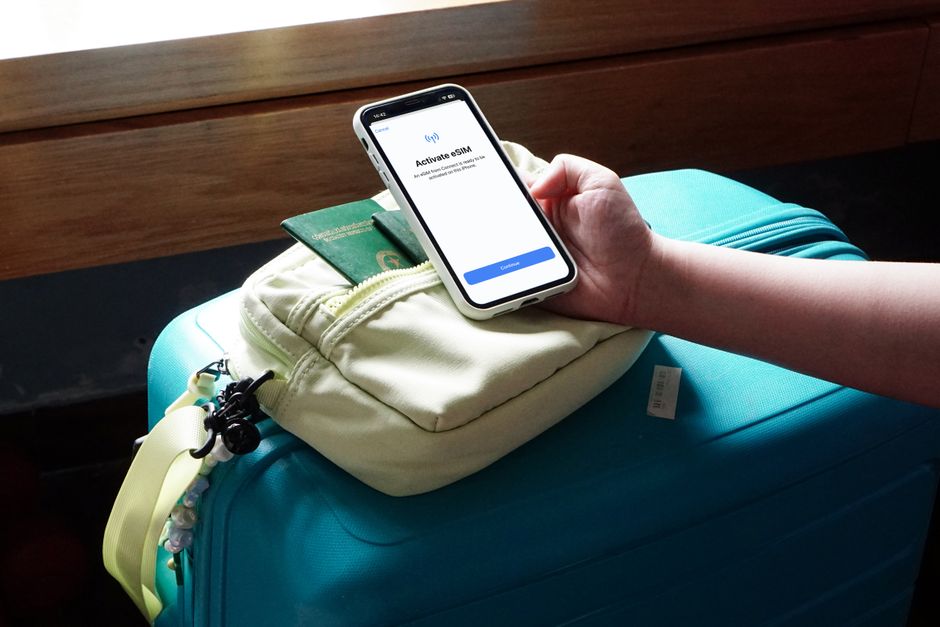
Photo: Joey Tran — Pexels
Why You Might Need Manual eSIM Activation
QR codes have become the standard way to deliver eSIM profiles, but they are not the only method. Many carriers and MVNOs now support manual activation, where you enter the activation details by hand. This is especially useful when you receive your eSIM details via email, SMS, or a web portal, and the QR code is missing, damaged, or simply not provided. Manual activation also helps when you are travelling and your carrier sends you a confirmation code instead of a scannable image.
In 2026, most Android flagships and many mid-range devices include an eUICC (embedded Universal Integrated Circuit Card) chip. This chip stores multiple eSIM profiles, letting you switch carriers without swapping physical SIMs. However, having the hardware is only half the story. Your carrier must also support eSIM provisioning and allow manual entry of activation codes. If your carrier only offers QR-based activation, manual entry may not work even on a compatible phone.
Understanding eSIM Activation Codes
Manual eSIM activation typically requires one of two types of codes: an activation code or a confirmation code. An activation code is a long alphanumeric string that uniquely identifies your eSIM profile. It often looks like a random sequence of letters and numbers, and it is tied to your carrier account. A confirmation code is a shorter numeric or alphanumeric code that you enter after the phone downloads the profile, to verify that you are the authorised user.
Some carriers use a combination of both. For example, you might receive an activation code via email and a confirmation code via SMS. In other cases, the activation code alone is enough, and the phone will prompt you for a confirmation code only if the carrier requires one. Always read the carrier’s instructions carefully to know which fields to fill in.
Step-by-Step Manual eSIM Activation on Android
The exact steps vary slightly between manufacturers, but the general process is consistent across Android 13 and later versions. Here is a universal guide that works on most devices, followed by device-specific notes.
- Open Settings. Go to your phone’s Settings app.
- Navigate to Network & Internet (or Connections). On Samsung devices, look for “Connections”; on Pixel and stock Android, look for “Network & Internet.”
- Select SIMs (or SIM card manager). Tap on “SIMs” or “SIM card manager.”
- Add an eSIM. Choose “Add eSIM” or “Add mobile plan.”
- Choose “Enter activation code manually.” Instead of scanning a QR code, tap the option that says “Enter activation code” or “Enter details manually.”
- Enter the activation code. Type or paste the code you received from your carrier. Make sure there are no extra spaces.
- Enter the confirmation code (if required). Some carriers ask for a confirmation code. Enter it if prompted.
- Download the profile. Your phone will contact the carrier’s server to download the eSIM profile. This may take a few seconds.
- Activate the eSIM. Once downloaded, the phone will ask if you want to use this eSIM as your primary line. Choose your preferred option.
Samsung Galaxy Manual eSIM Activation
On Samsung Galaxy devices (such as Galaxy S26, S25, Z Fold 6, or Z Flip 6), go to Settings > Connections > SIM card manager. Tap Add eSIM. You will see two options: “Scan QR code” and “Enter activation code.” Choose the latter. Enter the code exactly as provided. Samsung devices also allow you to add an eSIM from a carrier app, but manual entry is straightforward.
Google Pixel Manual eSIM Activation
On Pixel phones (Pixel 7, 8, 9, or newer), go to Settings > Network & Internet > SIMs. Tap Add eSIM. Then select “Enter activation code.” Pixel phones run stock Android, so the interface is clean and simple. If you have a Pixel with Android 14 or later, you can also download an eSIM from a carrier app, but manual entry works the same way.
Xiaomi, Motorola, and OnePlus Manual eSIM Activation
Xiaomi devices (like Xiaomi 13, 14, or Redmi Note series with eSIM) follow a similar path: Settings > SIM cards > Add eSIM. Motorola phones (such as Edge 50 series) use Settings > Network & Internet > Mobile network > Add eSIM. OnePlus devices (OnePlus 11, 12, or 13) have Settings > WiFi & Network > SIM & network > Add eSIM. In all cases, look for the “manual entry” or “enter code” option instead of scanning.
Device Compatibility: Hardware and Carrier Support
Not every Android phone supports eSIM. Even if your phone has an eUICC chip, your carrier must also support eSIM provisioning. For manual activation, the carrier must specifically allow manual code entry. Some carriers only support QR codes, and they may not provide an activation code. In that case, manual activation is impossible, regardless of your phone’s capabilities.
For example, a Samsung Galaxy S26 has full eSIM hardware support, but if your carrier only offers eSIM via a QR code sent through a mobile app, you cannot manually enter a code because the carrier’s server may not accept manual requests. Conversely, a carrier like Airalo or Holafly provides both QR codes and manual activation codes for most Android devices. Always check with your carrier before attempting manual activation.
Common Issues and Troubleshooting
Manual eSIM activation is usually smooth, but you may encounter a few issues. Here are the most common ones and how to fix them.
Invalid Activation Code
If you get an “invalid code” error, double-check the code for typos. Some codes are case-sensitive. Also, ensure you did not copy extra spaces or line breaks. If the code is correct but still fails, your carrier may have expired it. Contact them to request a new code.
No Network After Activation
After activation, if you have no signal, go to Settings > Network & Internet > SIMs and make sure the eSIM is enabled. You may also need to set it as the default data SIM. If you are using dual SIMs, check that the eSIM is not disabled by accident.
Carrier Does Not Support Manual Entry
If the manual entry option is greyed out or missing, your carrier likely does not support it. You can try using a QR code instead, or contact your carrier to ask if they can provide a different activation method, such as an app-based installation.
Phone Restarts During Activation
Sometimes the phone restarts during the eSIM download. This is normal. After reboot, check if the eSIM profile is present. If not, try again. If it fails repeatedly, restart your phone and ensure you have a stable internet connection (Wi-Fi or mobile data).
Security and Privacy Considerations
Manual eSIM activation is as secure as QR-based activation, provided you enter the code on your phone and not on a third-party website. Never share your activation code with anyone, as it can be used to provision your eSIM on another device. Also, be cautious of phishing attempts where someone sends you a fake activation code to steal your identity. Always verify that the code came from your official carrier.
When to Use Manual Activation
Manual activation is ideal when you have a clear text code, such as from an email. It is also useful for international travel eSIM providers that send codes via email. For example, if you buy an eSIM from a travel provider, they often email you a QR code and a manual code. If you print the email, the QR code may become blurry, but the manual code is still readable.
Another scenario is when you have a physical SIM in your phone and want to add an eSIM for a second line. Manual entry lets you do this without needing to scan anything. It is also handy if you have a tablet or smartwatch that supports eSIM but does not have a camera (though most do).
Future of eSIM Activation
By 2026, manual activation is becoming more common as carriers move away from physical QR codes. Some carriers now allow you to activate an eSIM entirely through their app, where the phone downloads the profile automatically without any manual entry. However, manual entry remains a reliable backup method. As eSIM technology evolves, we may see even simpler activation, such as tapping a link on a website that opens the phone’s eSIM settings directly.
Android’s eSIM manager is also improving. In recent versions, you can see all your eSIM profiles, download new ones, and even delete old ones. This makes it easier to manage multiple profiles, especially for frequent travellers.
Final Thoughts
Manual eSIM activation without a QR code is a practical skill that can save you time and frustration. Whether you are setting up a new phone or adding a travel eSIM, knowing how to enter the activation code manually ensures you are never stuck without a QR code. Always verify both hardware and carrier support before starting. If you are unsure whether your phone supports eSIM, use a reliable checking tool. We recommend checking your device with the free eSIM Check Android app to confirm compatibility before purchasing an eSIM plan. This app scans your device’s hardware and tells you if eSIM is possible. It is a simple step that prevents wasted time and money. Try it today and enjoy the convenience of eSIM on your Android phone.
Frequently Asked Questions
Can I activate an eSIM without a QR code on any Android phone?expand_more
What do I need for manual eSIM activation?expand_more
Is manual eSIM activation secure?expand_more
What should I do if manual activation fails?expand_more
Check your own phone in seconds
The free eSIM Check app reads your device's real hardware capabilities — no guesswork.
Get it on Google Play