August 9, 2026
How to Activate an eSIM on Android: Step-by-Step Guide
Learn how to activate an eSIM on Android devices in 2026. Step-by-step instructions for Samsung, Pixel, Xiaomi, and more. Check compatibility and troubleshoot issues.
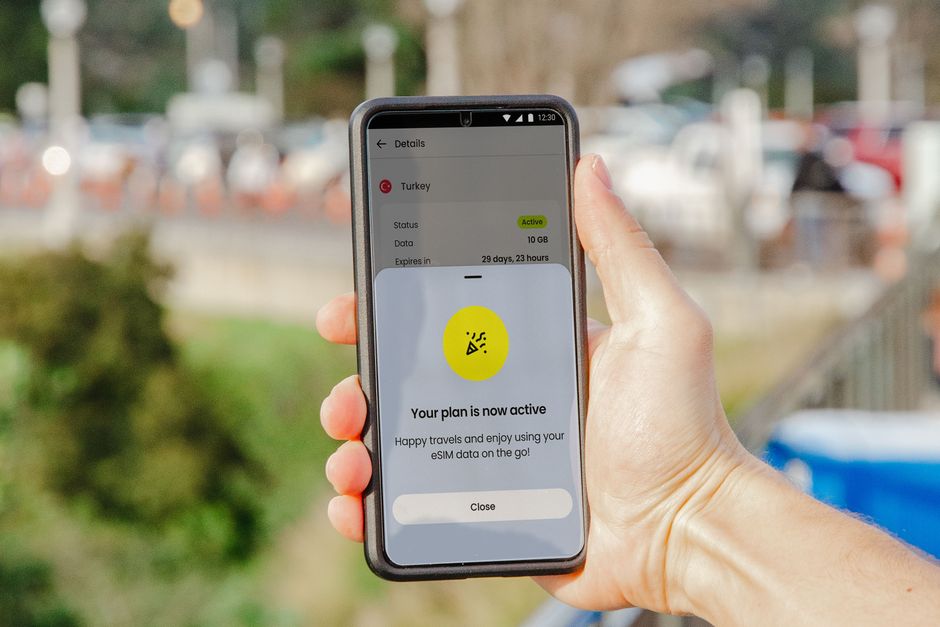
Photo: Jacob — Pexels
What Is an eSIM and How Does It Work on Android?
An eSIM (embedded SIM) is a small chip built directly into your Android smartphone. Unlike a traditional plastic SIM card, an eSIM is rewritable and can store multiple mobile network profiles. The technology is governed by the eUICC (embedded Universal Integrated Circuit Card) standard, which allows you to download, activate, and switch carriers without swapping physical cards.
On Android, eSIM functionality is deeply integrated into the system settings. Most flagship devices from Samsung, Google, Xiaomi, Motorola, and OnePlus released after 2020 include an eUICC chip. However, not every Android phone supports eSIM — you need both hardware support and carrier support. Even if your phone has the chip, your mobile operator must offer eSIM activation for your specific plan.
Prerequisites: What You Need Before You Start
Before you attempt to activate an eSIM, ensure you meet the following requirements:
- eSIM-compatible Android device: Check your phone’s specifications. For example, Samsung Galaxy S21 and newer, Google Pixel 4 and newer, Xiaomi 13 and newer, Motorola Razr and Edge series, and OnePlus 11, 12, 13 and 15 generally support eSIM. Older budget models may not.
- Carrier eSIM support: Your mobile operator must offer eSIM provisioning. Many major carriers worldwide support it, but some prepaid or regional carriers may not. Contact your carrier or check their website.
- Active internet connection: You need Wi-Fi or a working mobile data connection to download the eSIM profile.
- QR code or activation details: Your carrier will provide a QR code, an activation code, or a manual activation string. Keep this handy.
If you are unsure whether your device supports eSIM, you can use the free eSIM Check Android app — it scans your device’s hardware and tells you instantly.
Step-by-Step: How to Activate an eSIM on Android
The exact menu names may vary slightly between manufacturers, but the general process is consistent across Android. Follow these steps:
Step 1: Open Settings
Unlock your Android phone and go to the Settings app. Look for the network or connectivity section. On Samsung devices, it is usually under Connections; on Google Pixel, it is under Network & internet; on Xiaomi, look for SIM cards & mobile networks; on Motorola and OnePlus, it is often under Network & internet or SIM & network.
Step 2: Find the eSIM or SIM Manager Option
In the network settings, tap on SIM card manager, SIM manager, or eSIM (depending on your device). On Samsung, it is called SIM card manager. On Pixel, tap SIMs. On Xiaomi, tap SIM cards.
Step 3: Add a Mobile Plan
Look for an option like Add mobile plan, Add eSIM, or Download a new SIM. Tap it. Your phone will switch to a screen where you can scan a QR code or enter details manually.
Step 4: Scan the QR Code or Enter Activation Details
If your carrier gave you a QR code, position it within the camera frame. The phone will automatically detect and read it. If you have an activation code or a manual SM-DP+ address, tap Enter details manually and type the information exactly as provided. This is common for some enterprise or business plans.
Step 5: Confirm and Download the eSIM Profile
After scanning or entering the details, your phone will display the plan information — carrier name, plan type, and sometimes a confirmation of data allowance. Review the details and tap Download or Continue. The device will contact the carrier’s provisioning server to securely download the eSIM profile onto the eUICC chip.
Step 6: Label Your eSIM
Once downloaded, Android will ask you to name the plan. This is helpful if you use multiple SIMs (eSIM + physical SIM). Choose a clear label like “Personal” or “Travel.” Tap Done or Finish.
Step 7: Set the eSIM as Your Default Line (Optional)
If you want to use the eSIM for calls, texts, and data, go back to the SIM manager and tap on the eSIM. Select Use as default or Set as primary. You can also choose which SIM handles mobile data, calls, and SMS independently.
Step 8: Restart Your Phone
Although not always required, restarting your phone helps the system fully integrate the new eSIM profile. After reboot, check your signal indicator — it should show the carrier network.
How to Activate an eSIM on Specific Android Brands
While the general steps are similar, here are specific paths for popular brands:
Samsung Galaxy (Galaxy S21 and newer, Galaxy Z Fold/Flip)
Go to Settings > Connections > SIM card manager > Add mobile plan. Tap Scan QR code or Enter activation code. After scanning, confirm the plan and tap Add. You can then assign the eSIM to a specific slot (SIM 1 or SIM 2) for calls and data.
Google Pixel (Pixel 4 and newer)
Open Settings > Network & internet > SIMs > Add SIM > Download a SIM instead. Scan the QR code or enter the activation code manually. Follow the prompts and tap Done.
Xiaomi (Xiaomi 13 and newer, Redmi Note 13 Pro+ 5G)
Navigate to Settings > SIM cards & mobile networks > Add carrier or Add eSIM. You may need to tap the “+” icon. Scan the QR code and confirm. Xiaomi devices sometimes require you to restart after adding the eSIM.
Motorola (Razr 5G, Edge 40 and newer)
Go to Settings > Network & internet > Mobile network > Add carrier. Tap Next and scan the QR code. Follow the on-screen instructions. Motorola phones usually show a success message once the profile is installed.
OnePlus (OnePlus 11 and newer)
Open Settings > Wi-Fi & network > SIM & network > Add eSIM. Scan the QR code or enter the SM-DP+ address manually. Confirm the plan and tap Activate.
Troubleshooting Common eSIM Activation Issues
Sometimes activation fails. Here are the most common problems and how to solve them:
| Issue | Possible Cause | Solution |
|---|---|---|
| QR code not scanning | Poor lighting or damaged code | Clean the screen, increase brightness, or ask the carrier to resend the QR code. |
| “No eSIM available” error | Device hardware does not support eSIM | Use the eSIM Check Android app to verify. If not supported, you cannot activate an eSIM. |
| Carrier not found | Carrier does not support eSIM on your plan | Contact the carrier and request eSIM provisioning. They may need to enable it on their side. |
| Profile downloaded but no signal | Incorrect network settings or APN | Go to network settings and manually set the APN, or restart the phone. If the issue persists, delete the eSIM and re-add it. |
| Multiple eSIM profiles not working | Only one active at a time | On most Android devices, you can store multiple eSIM profiles but only one can be active at a time. Switch between them in SIM manager. |
Important Considerations for eSIM Users
Here are a few extra tips to ensure a smooth eSIM experience:
- Keep your QR code safe: You may need it again if you reset your phone or delete the profile.
- Do not delete the eSIM profile unless necessary: If you remove it, you may need to contact your carrier to re-provision it.
- eSIM is not tied to a physical SIM slot: You can use eSIM alongside a physical SIM for dual SIM functionality, but both can be active simultaneously only if your device supports dual SIM standby.
- Roaming and travel: eSIM is excellent for travel — you can buy a local data plan from a provider like Airalo or Holafly and activate it without visiting a store.
- Security: eSIM profiles are encrypted and securely stored on the eUICC, making them harder to clone than physical SIMs.
How to Check if Your Android Device Supports eSIM
If you are not sure about your phone’s eSIM capability, you can check manually:
- Dial *#06# on your phone. If you see an EID (Embedded Identity Document) number, your device has an eUICC chip.
- Go to Settings > About phone and look for EID or eSIM in the status or regulatory information.
- Use the eSIM Check Android app — it quickly scans your device and tells you if eSIM is supported, along with carrier compatibility hints.
Remember, even if your device supports eSIM, your carrier must also support it. Some carriers only offer eSIM for postpaid plans, while others support prepaid and data-only plans. Always verify with your operator before purchasing an eSIM plan.
Final Thoughts
Activating an eSIM on Android is a straightforward process once you know the steps. The key is to ensure your device and carrier both support eSIM. With the rise of eSIM-only phones and the growing adoption by carriers worldwide, eSIM is becoming the new standard. In 2026, almost every new Android flagship includes eSIM, and many mid-range devices are following suit.
If you encounter any difficulties, don’t hesitate to contact your carrier’s support team. They can verify your plan and provide the correct QR code or activation details. And if you are unsure about your device’s compatibility, download the free eSIM Check Android app from the Google Play Store — it will give you a definitive answer in seconds.
Whether you are switching to a new carrier, traveling abroad, or simply want to keep two numbers on one phone, eSIM offers flexibility and convenience that physical SIM cards cannot match. Follow the steps in this guide, and you will be up and running in no time.
Frequently Asked Questions
Can I use an eSIM on any Android phone?expand_more
What should I do if my eSIM QR code is not scanning?expand_more
Can I have both a physical SIM and an eSIM active at the same time on Android?expand_more
Is it possible to transfer an eSIM from one Android phone to another?expand_more
Check your own phone in seconds
The free eSIM Check app reads your device's real hardware capabilities — no guesswork.
Get it on Google Play