September 21, 2026
Microsoft Surface eSIM
Discover which Microsoft Surface tablets and laptops support eSIM, how to activate it, and what carriers offer. Learn about eUICC, QR codes, and device compatibility.
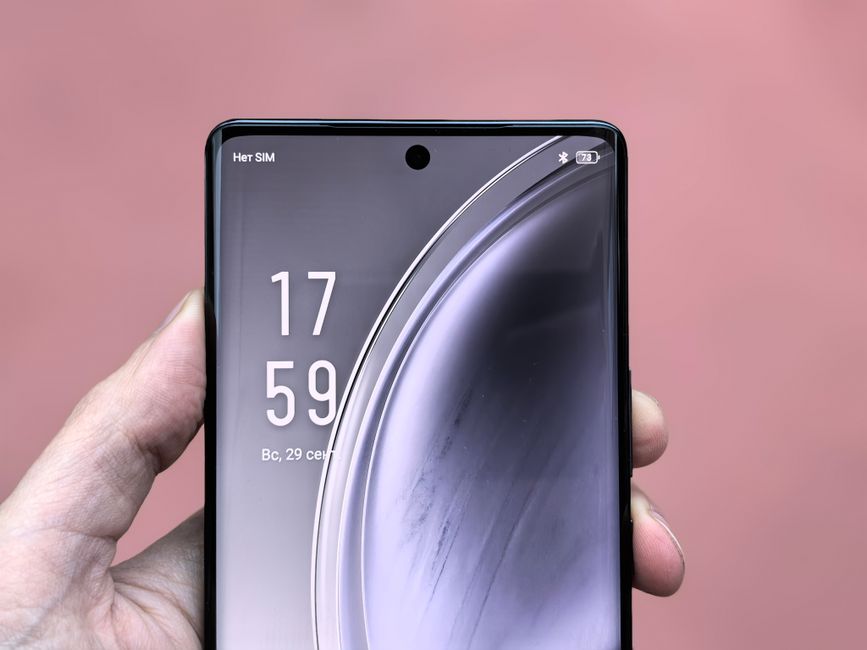
Photo: Andrey Matveev — Pexels
Microsoft Surface eSIM: Which Tablets and Laptops Connect Without Wi-Fi
Microsoft Surface devices are known for their versatility, blending tablet portability with laptop performance. But when it comes to staying connected without relying on Wi-Fi, eSIM technology is a game-changer. In this article, we'll explore which Surface models support eSIM, how the technology works, and what you need to know to get online anywhere.
What Is eSIM and Why Does It Matter for Surface?
An eSIM (embedded SIM) is a small chip—technically an eUICC (embedded Universal Integrated Circuit Card)—soldered directly onto a device's motherboard. Unlike a physical SIM card, an eSIM cannot be removed. Instead, it stores multiple carrier profiles digitally. You activate a plan by scanning a QR code provided by your carrier or through an app, and the profile is downloaded securely over the internet.
For Surface users, eSIM means you can connect to cellular networks without hunting for a physical SIM or swapping cards when you travel. It's ideal for staying productive on the go, whether you're on a train, in a café, or at a client site. However, eSIM requires both hardware support (the eUICC chip) and carrier support (the ability to provision an eSIM profile for your device). Not all Surface models have eSIM, and not all carriers offer eSIM plans for laptops and tablets.
Which Microsoft Surface Devices Support eSIM?
Microsoft has integrated eSIM into several Surface models, primarily in the business-focused lines. Here are the current Surface devices that include eSIM hardware:
- Surface Pro X, Pro (5th Gen) with LTE Advanced, Pro 7+ with LTE Advanced, Pro 8 with LTE Advanced – These 2-in-1 tablets offer eSIM in their LTE configurations only.
- Surface Pro 9 with 5G, Pro 10 with 5G for Business, Pro (11th Edition) with 5G, Pro 5G for Business (12th Edition, 13-inch), Pro for Business 12-inch (2nd Edition) 5G – The 5G versions support eSIM. The Surface Pro 9 with 5G, for example, includes both eSIM and a physical nano-SIM slot.
- Surface Laptop 5G for Business (13.8-inch, 7th Edition) – The only Surface Laptop with a cellular modem, and it supports eSIM.
- Surface Go 3 with LTE Advanced – The LTE Advanced model of this compact tablet supports eSIM, making it a great travel companion.
It's important to note that several recent cellular models are sold only to businesses (Pro 10 with 5G, Pro 5G for Business, Surface Laptop 5G for Business), while the Pro X, Pro 9 with 5G and Pro (11th Edition) with 5G were also sold to consumers. Wi-Fi-only configurations have no cellular modem. Always verify the exact model number and configuration before assuming eSIM is available.
What About Other Surface Models?
Models like the Surface Laptop Studio, Surface Laptop 5, the Surface Book series, every Surface Laptop Go (including the Laptop Go 2), Surface Go 4 and the Intel versions of the Pro 9 and Pro 11 have no eSIM: they are Wi-Fi-only. If you need cellular connectivity, you'll have to rely on tethering or a mobile hotspot.
How to Activate eSIM on Your Surface
Activating an eSIM on a supported Surface device is straightforward. Here's the step-by-step process:
- Check carrier support: Not all carriers provide eSIM profiles for laptops and tablets. Major carriers like AT&T, T-Mobile, and Verizon in the US, as well as EE, Vodafone, and O2 in the UK, offer eSIM plans for select devices. Contact your carrier to confirm Surface compatibility.
- Obtain a QR code or activation code: Once you've signed up for a plan, your carrier will provide a QR code (or an activation code) that contains the eSIM profile.
- Open Windows Settings: On your Surface, go to Settings > Network & internet > Cellular.
- Add eSIM: Click Add eSIM or Manage eSIM profiles. Select Use QR code and scan the code with your device's camera, or enter the activation code manually.
- Follow prompts: Windows will download the profile and install it. You may need to restart your device.
- Connect: Once installed, select the eSIM profile in Cellular settings and turn on mobile data. You should see signal bars and be able to browse without Wi-Fi.
Keep in mind that eSIM profiles are carrier-locked to the device they're installed on. You cannot transfer an eSIM profile to another device by simply moving a card—you'll need to request a new QR code from your carrier.
eSIM vs. Physical SIM on Surface: Which Is Better?
Many Surface devices with cellular support include both an eSIM and a physical nano-SIM slot. So which should you use?
- eSIM advantages: No need to visit a store or wait for a SIM to arrive. You can switch carriers instantly by downloading a new profile. It's also more secure—if your device is stolen, the eSIM cannot be removed.
- Physical SIM advantages: Easier to move between devices. Some prepaid carriers still don't support eSIM for tablets/laptops. Physical SIMs are also useful if you frequently travel to countries where eSIM isn't available.
For most users, eSIM is the more convenient option, especially for short-term travel plans. But if you need maximum flexibility, having both is ideal.
Carrier Support for Surface eSIM
Carrier support for eSIM on Windows devices is still evolving. In the US, AT&T, T-Mobile, and Verizon offer eSIM for select laptops and tablets, but you should verify that your specific Surface model is on their approved list. In Europe, carriers like Vodafone, EE, and Orange have eSIM plans for tablets, but again, check compatibility.
Some carriers may require you to visit a store or call customer service to activate an eSIM for a laptop. Others allow self-service via an app. Always confirm before purchasing a plan.
Other eSIM-Enabled Devices Worth Considering
If you're looking for a cellular-enabled tablet or laptop beyond Surface, several other brands offer eSIM. For example, the Samsung Galaxy Tab S9 (5G models), Galaxy Tab S10+ (5G models), and Galaxy Tab S10 Ultra (5G models) support eSIM. Apple's iPad lineup, including the 11-inch iPad Pro (all generations) and 12.9-inch iPad Pro (3rd generation or later), also supports eSIM. On the laptop side, some WWAN (LTE/5G) configurations include eSIM, for example the Lenovo ThinkPad X1 Carbon (Gen 7 and later), Dell Latitude 7440 / 7450, HP EliteBook 840 G10 and ASUS ExpertBook B3 (B3405 / B3605). eSIM depends on the WWAN module and generation, so check the exact configuration.
For smartphones, eSIM is widespread. The Samsung Galaxy S24, Google Pixel 8, Xiaomi 14, Motorola Razr 2024, and OnePlus 12 all support eSIM. But remember: eSIM requires both hardware and carrier support. A phone may have the chip but your carrier might not provision it.
Frequently Asked Questions
Can I use eSIM on any Surface device?
No. Only the LTE or 5G versions of specific models include eSIM: Surface Pro X, Pro (5th Gen), Pro 7+ and Pro 8 with LTE Advanced, Pro 9 with 5G, Pro 10 with 5G for Business, Pro (11th Edition) with 5G, Pro 5G for Business (12th Edition), Pro for Business 12-inch (2nd Edition) 5G, Surface Laptop 5G for Business and Surface Go 3 with LTE Advanced. The Surface Laptop Go 2 has no cellular modem. Most Surface devices are Wi-Fi only.
Do I need a separate data plan for eSIM on Surface?
Yes. You'll need a cellular data plan from a carrier that supports eSIM for laptops/tablets. This is separate from your phone plan unless your carrier offers a shared data plan that includes eSIM wearables or tablets.
Can I make phone calls with eSIM on Surface?
No. eSIM on Surface is for data only. You cannot make traditional voice calls unless you use VoIP apps like Skype or Teams.
How do I know if my Surface has eSIM?
Check your device specifications in Settings > System > About, or look for a cellular option in Network & internet settings. You can also use the free eSIM Check Android app to verify eSIM capability on Android devices, but for Surface, refer to Microsoft's official documentation.
Final Thoughts
Microsoft Surface devices with eSIM offer a convenient way to stay connected without Wi-Fi, but support is limited to specific models and carriers. If you own a cellular Surface Pro (Pro X, 5th Gen LTE, 7+, 8, 9 5G, 10 5G, 11th Edition 5G or later 5G for Business models), a Surface Laptop 5G for Business or a Surface Go 3 with LTE Advanced, check your configuration and carrier options. For everyone else, tethering or a mobile hotspot remains the fallback.
Before you buy any device, always confirm eSIM support. The free eSIM Check Android app can quickly tell you if your Android phone or tablet is eSIM-ready. For Surface, consult Microsoft's specifications or contact your carrier. Stay connected, wherever you go.
Frequently Asked Questions
Can I use eSIM on any Surface device?expand_more
Do I need a separate data plan for eSIM on Surface?expand_more
Can I make phone calls with eSIM on Surface?expand_more
How do I know if my Surface has eSIM?expand_more
Check your own phone in seconds
The free eSIM Check app reads your device's real hardware capabilities — no guesswork.
Get it on Google Play