September 21, 2026
iPad eSIM Compatibility: Which iPads Have Cellular & eSIM in 2026
Discover which iPads support eSIM in 2026. Learn about eUICC, carrier activation, QR codes, and how to check iPad eSIM compatibility. Find out if your iPad has cellular and eSIM.
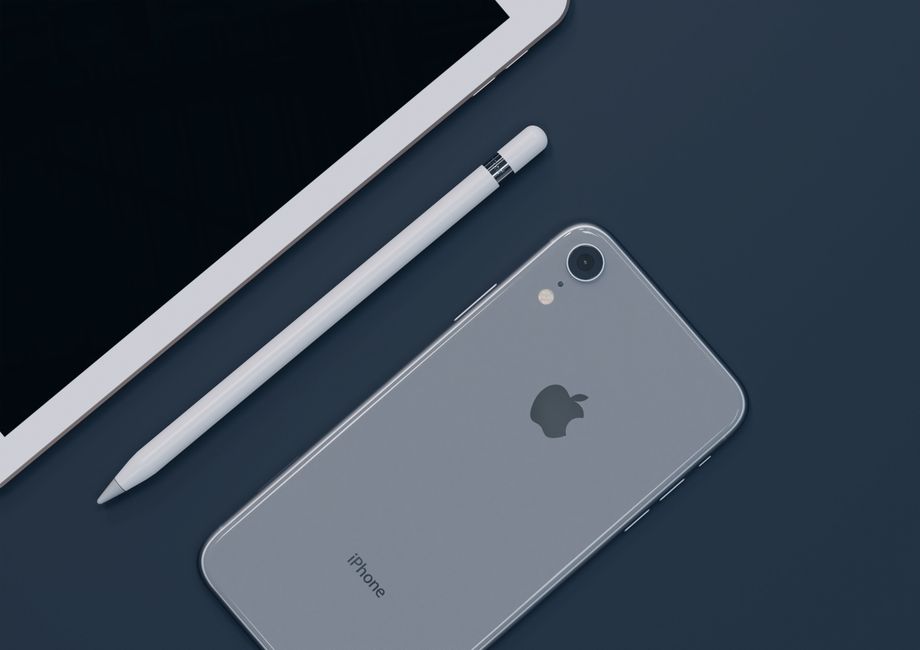
Photo: Nana Dua — Pexels
iPad eSIM Compatibility: The Complete Guide for 2026
If you're considering an iPad for mobile connectivity, you've likely encountered the term eSIM. Unlike traditional SIM cards, an eSIM (embedded SIM) is a small chip soldered directly onto the device's motherboard. This technology offers greater flexibility, allowing you to switch carriers or add secondary lines without physical SIM cards. But not all iPads support eSIM, and even those that do require carrier support to function. In this guide, we'll explain exactly which iPads have cellular and eSIM capabilities in 2026, how eSIM works on iPad, and what you need to know before activating a plan.
What Is eSIM and How Does It Work on iPad?
An eSIM is a reprogrammable eUICC (embedded Universal Integrated Circuit Card) chip that stores your carrier profile digitally. Instead of inserting a plastic SIM, you activate a plan by scanning a QR code provided by your carrier, using a carrier app, or entering an activation code manually. Once installed, the eSIM behaves just like a physical SIM: it connects to the cellular network for data, calls, and messages (though iPads typically support data-only plans).
On iPad, eSIM is particularly useful for travelers and professionals who need flexible data options. You can store multiple eSIM profiles and switch between them in Settings. However, remember that eSIM requires both hardware support (the iPad must have an eUICC chip) and carrier support (your mobile operator must offer eSIM provisioning for iPad). Even if your iPad is eSIM-capable, you won't be able to use it unless your carrier supports the technology.
Which iPads Have Cellular and eSIM?
Apple has integrated eSIM into many iPad models over the years. According to Apple's official specifications, the following iPads support eSIM (note that cellular models are required; Wi-Fi-only iPads do not have eSIM hardware):
- iPad Pro 11-inch (all generations) – From the first generation (2018) to the latest models, all cellular versions include eSIM.
- iPad Pro 12.9-inch (3rd generation or later) – The 3rd gen (2018) and newer cellular models support eSIM.
- iPad Pro 13-inch (M4 and M5) – Cellular models are eSIM-only, with no nano-SIM tray.
- iPad Air (3rd generation or later) – Starting with the 2019 iPad Air (3rd gen), cellular models have eSIM.
- iPad (7th generation or later) – The 7th gen (2019) and subsequent iPad models with cellular support eSIM.
- iPad mini (5th generation or later) – The 2019 iPad mini (5th gen) and newer cellular versions include eSIM.
It's important to note that only cellular models of these iPads have eSIM hardware. Wi-Fi-only iPads lack the necessary cellular modem and eUICC chip. Additionally, while these iPads support eSIM, older models also have a physical nano-SIM tray, while the latest models are eSIM-only worldwide (see below), allowing you to use either a physical SIM or an eSIM.
eSIM vs. Physical SIM on iPad: What's the Difference?
Both eSIM and physical SIM serve the same purpose: connecting your iPad to a cellular network. The key differences lie in form factor and flexibility:
- eSIM: Built into the device, no tray needed. You can add multiple profiles and switch carriers digitally. Ideal for frequent travelers or those who want a secondary data line.
- Physical SIM: Requires a tray and a plastic card. Easier to transfer between devices, but less flexible for multiple profiles.
Older cellular iPads (iPad Pro 11-inch 1st to 4th generation, iPad Pro 12.9-inch 3rd to 6th generation, iPad Air 3rd to 5th generation, iPad 7th to 10th generation, iPad mini 5th and 6th generation) support both eSIM and a physical nano-SIM. The latest models, the iPad Pro (M4, M5) 11-inch and 13-inch, iPad Air (M2, M3, M4) 11-inch and 13-inch, iPad (A16) and iPad mini (A17 Pro), are eSIM-only worldwide: their cellular versions have no physical SIM tray. Always check your model's specifications.
How to Check if Your iPad Supports eSIM
Not sure whether your iPad has eSIM? Here are three ways to find out:
- Check Settings: Go to Settings > Cellular. If you see an option to "Add Cellular Plan" or "Add eSIM," your iPad supports eSIM.
- Look for an EID: In Settings > General > About, scroll down to find the EID (Embedded Identity Document). If an EID is listed, your iPad has an eUICC chip and supports eSIM.
- Check the model number: Compare your iPad's model number (in Settings > General > About) with Apple's official list of eSIM-capable iPads. The models listed in the previous section are all compatible.
If your iPad is Wi-Fi-only, it will not have any cellular options, including eSIM. In that case, you can still use a portable hotspot from your phone or a mobile hotspot device.
Carrier Support: The Other Half of the Equation
Even if your iPad has eSIM hardware, you need a carrier that supports eSIM for iPad. Major carriers in the US, UK, Canada, Australia, and many other countries now offer eSIM plans for tablets. However, support can vary by region and plan type. For example, some prepaid carriers may not offer eSIM for iPad, while postpaid plans often do.
Before purchasing an eSIM plan, check with your carrier to confirm:
- They offer eSIM for iPad (data-only or voice/data plans).
- They can provide a QR code or activation code for eSIM setup.
- Your specific iPad model is supported (some carriers maintain compatibility lists).
If your carrier doesn't support eSIM for iPad, you can still use a physical SIM if your iPad has a SIM tray. Alternatively, consider switching to a carrier that does support eSIM, or use a travel eSIM provider when abroad.
How to Activate an eSIM on Your iPad
Activating an eSIM on a compatible iPad is straightforward. Here's the general process:
- Obtain an eSIM activation QR code or app from your carrier. This may be provided online, via email, or in-store.
- On your iPad, go to Settings > Cellular. Tap "Add Cellular Plan."
- Scan the QR code using your iPad's camera, or enter the activation details manually if provided.
- Follow the on-screen prompts to download and install the eSIM profile. This may take a few moments.
- Label your plan (e.g., "Work," "Travel") and set default lines for data, calls, and messages if you have multiple plans.
Once activated, you can manage your eSIM plans in Settings, including turning them on/off, switching between them, or removing them. Note that removing an eSIM profile may require re-provisioning from your carrier if you want to add it back.
eSIM on iPad vs. Other Devices: What About Android Tablets?
eSIM is not exclusive to Apple. Many Android tablets also support eSIM, including the Samsung Galaxy Tab S10+ (5G models), Galaxy Tab S10 Ultra (5G models), Galaxy Tab S9 (5G models), Galaxy Tab S9+ (5G models), and Galaxy Tab S9 Ultra (5G models). Various Microsoft Surface models (e.g., Surface Pro 9, 8, 7+, X in their LTE or 5G configurations) also support eSIM. The technology is becoming standard in premium cellular tablets.
When choosing a tablet, consider whether you need cellular connectivity at all. If you mainly use your iPad at home or in offices with Wi-Fi, a Wi-Fi-only model is cheaper and sufficient. But if you're often on the go, eSIM provides convenient, contract-free data options.
Frequently Asked Questions About iPad eSIM
Can I use a physical SIM and an eSIM at the same time on iPad?
Yes, if your iPad has both a physical SIM tray and eSIM support, you can use both simultaneously. This allows you to have two separate lines, such as one for personal use and one for work.
Does eSIM work internationally on iPad?
Yes, but you'll need an eSIM plan that covers the countries you're visiting. Many carriers offer international roaming, or you can purchase a local eSIM from a provider in your destination country. Ensure your iPad is unlocked to use third-party eSIMs.
What happens if I erase my iPad? Will I lose my eSIM?
Erasing your iPad may remove the eSIM profile. You can usually re-add it by contacting your carrier or re-scanning the original QR code. Some carriers allow self-service reinstallation via their app.
Can I transfer an eSIM from one iPad to another?
eSIM transfer between iPads is not always straightforward. You may need to contact your carrier to deactivate the eSIM on the old device and issue a new one for the new iPad. Apple's eSIM Quick Transfer feature works between iPhones, but iPad support varies.
Final Thoughts: Check Your iPad's eSIM Compatibility Today
eSIM technology is transforming how we connect tablets, offering flexibility and convenience for users on the move. If you own an iPad Pro 11-inch (any generation), iPad Pro 12.9-inch (3rd gen or later), iPad Pro 13-inch (M4, M5), iPad Air (3rd gen or later), iPad (7th gen or later), or iPad mini (5th gen or later) with cellular, your device likely supports eSIM. Just remember that carrier support is equally important—without it, the eSIM chip remains dormant.
Before you buy an eSIM plan, verify your iPad's compatibility and check with your carrier. For a quick and easy way to confirm eSIM support on your Android device, download the free eSIM Check app from the Google Play Store. It scans your device's hardware and tells you if it's eSIM-ready, saving you time and guesswork. Stay connected effortlessly in 2026 and beyond!
Frequently Asked Questions
Which iPad models support eSIM in 2026?expand_more
Can I use an eSIM on a Wi-Fi-only iPad?expand_more
How do I activate an eSIM on my iPad?expand_more
Does my carrier need to support eSIM for iPad?expand_more
Check your own phone in seconds
The free eSIM Check app reads your device's real hardware capabilities — no guesswork.
Get it on Google Play